


How to activate and use the saving feature on your Bitsa Card?
Some people have been meaning to buy crypto for months and still haven’t bought anything. Not because they’re not interested, but because the moment never seems right: when the price goes up it feels expensive, when it drops it feels like it might keep falling. The Bitsa card Saving feature works regardless of all that.
Buying consistently over time, regardless of the price, means your average cost gets spread out. You don’t buy everything at the top or everything at the bottom, you build up steadily. That’s what Saving automates.
What is Bitsa Saving?
The Saving feature is a function in the Bitsa card app that schedules periodic cryptocurrency purchases automatically. It’s not an investment product or a savings account: it’s a tool that automates something that would otherwise depend on you remembering, feeling motivated, and deciding to act.
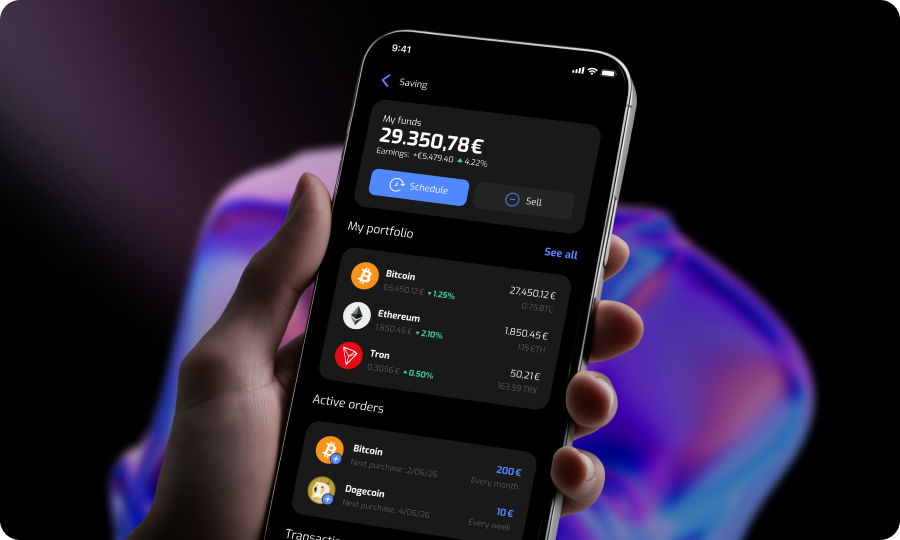
The way it works is straightforward. You set the cryptocurrency, the amount, and the frequency. Every time the scheduled date comes around, the app makes the purchase using the available balance on your Bitsa card, without you having to do anything. Whatever the price is that day doesn’t matter: the purchase goes through either way.
Over time, that produces a distributed average cost. You’re not buying everything at one specific moment, good or bad, but steadily over time. That doesn’t guarantee any particular outcome, but it does eliminate the risk of having bought everything right at the worst possible moment.
The cryptocurrencies available for Saving are: Bitcoin, Ethereum, Litecoin, XRP, Cardano, Solana, Polkadot, Tron, Dogecoin, Bitcoin Cash, Stellar, Avalanche and USD Coin.
How to activate Saving from the app
To set up your first Saving, go to the Crypto section of the app and open Savings. There you’ll find the “Schedule” option, which starts the setup process.
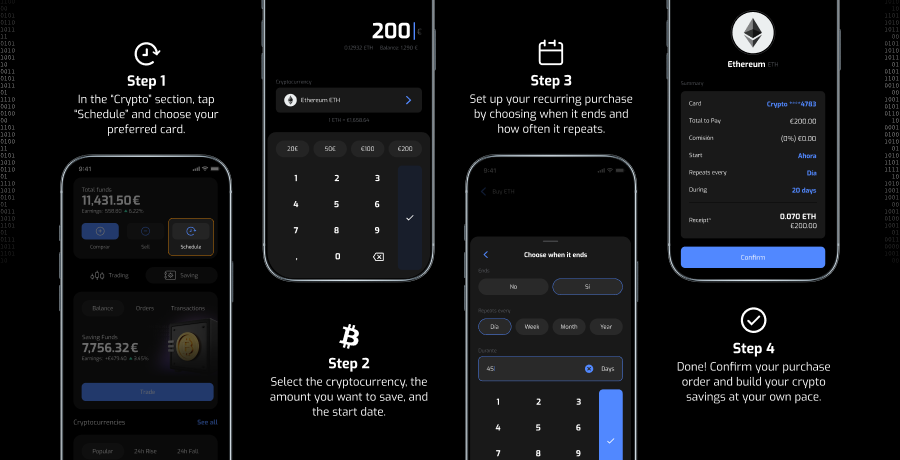
The process has three steps: choose the cryptocurrency you want to accumulate, set the amount for each automatic purchase, and select how often you want it to repeat. Once confirmed, the Saving activates immediately and starts running according to the parameters you’ve set. You don’t need to do anything else unless you want to make changes.
How to set the amount and frequency
The minimum amount per transaction is €6. The maximum depends on the balance available on your plan. Within that range, you decide how much to put towards each purchase.
There are four frequency options: daily, weekly, monthly and yearly. The frequency doesn’t change the amount of each transaction, just how many times it runs over time. A daily purchase of €6 generates far more transactions than a monthly one for the same amount, which also means you need to have available balance more regularly for the Saving to run without interruptions.
There’s no right answer when it comes to choosing a frequency. It depends on how you manage the balance on your card and how steadily you want to build up. What does make sense is to set an amount you can sustain consistently, not the maximum you could manage in one particular month.
How to pause, modify or cancel your Saving
All actions on an active Saving are managed from the Savings section in the app. Once the order is created, you can go in and edit it to change the amount or frequency, pause it temporarily if you don’t want it to run for a period, or cancel it permanently.
If you cancel the Saving, the automatic purchases stop from that point on. Any crypto that has already been accumulated remains in your account exactly like any crypto you’ve bought manually.
How to read your automatic purchase history
The record of all transactions made by your Saving is available in the Savings section of the app. There you can check each purchase with its date and amount, and see how much crypto you’ve accumulated in total since you activated the feature.
Checking that history from time to time makes sense if you want to track how your position is developing or if you’re thinking about adjusting the amount based on what you’ve built up so far. You don’t need to check it often, but it’s there when you need it.
Saving does what you don’t want to have to do every week. This Bitsa card feature does what you don’t want to have to do yourself. Having to decide when and how much to buy each time is what stops most people from buying anything at all. The Bitsa card Saving feature cuts through that: you set up the order once and the app takes care of the rest. To get started, go to the Crypto section of your Bitsa card and look for Saving.