

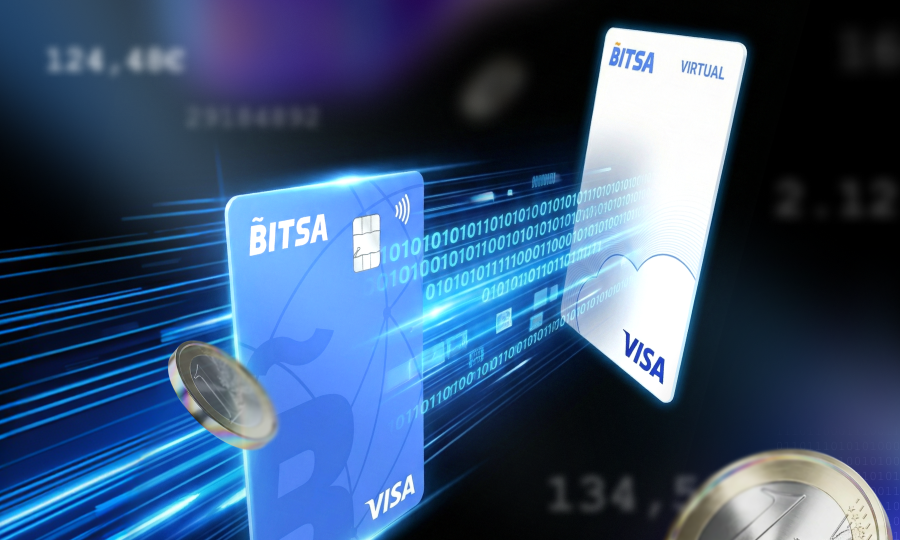
How to transfer money between two Bitsa accounts
Some things should be as simple as sending a text. With Bitsa, moving balance between cards is designed to work exactly like that: a couple of taps and you’re done. Whether you’re organising your own budgets or sending money to a friend, the process is straightforward, without any unnecessary financial jargon.
There are a few ways to transfer money with Bitsa. Here are your options.
Transfer between your own Bitsa cards
If you have more than one Bitsa prepaid card (for example, a main card and a virtual card for online purchases), you can move balance between them instantly using the transfer feature.
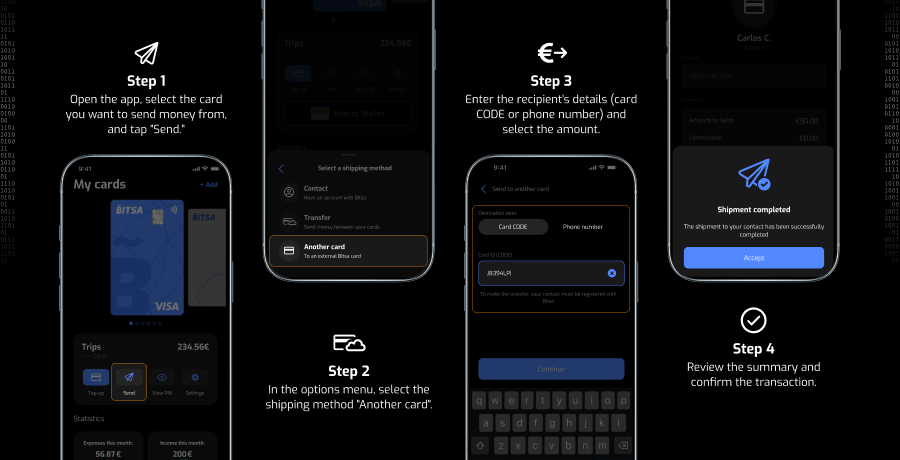
- Open the Bitsa app and select the card you want to send money from.
- Tap “Send.”
- In the options menu, choose “Transfer.”
- Select the destination card and enter the amount.
- Review the summary and confirm the transfer.
This option is especially useful if you use one card for everyday spending and another specifically for online payments and you want to make sure the balance is always where you need it. It’s also handy for separating budgets, like keeping one card just for subscriptions or travel expenses.
Send money to another Bitsa user
You can also transfer money to anyone else who has a Bitsa card, family, friends or your partner. There are two ways to do it, and both are just as quick.
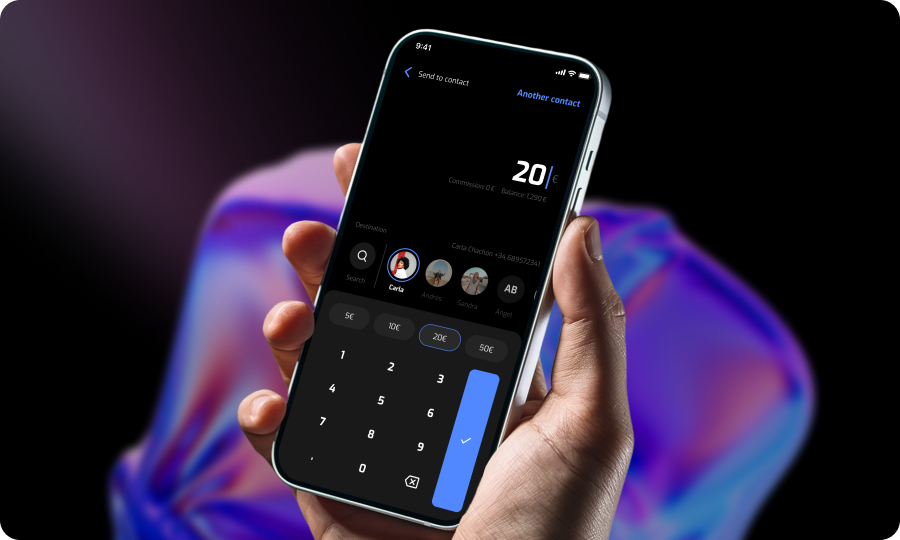
Send to contacts saved on your phone
If the other person’s phone number is saved in your contacts and linked to their Bitsa account, you can find them directly in the app and send money without needing any codes or card numbers.
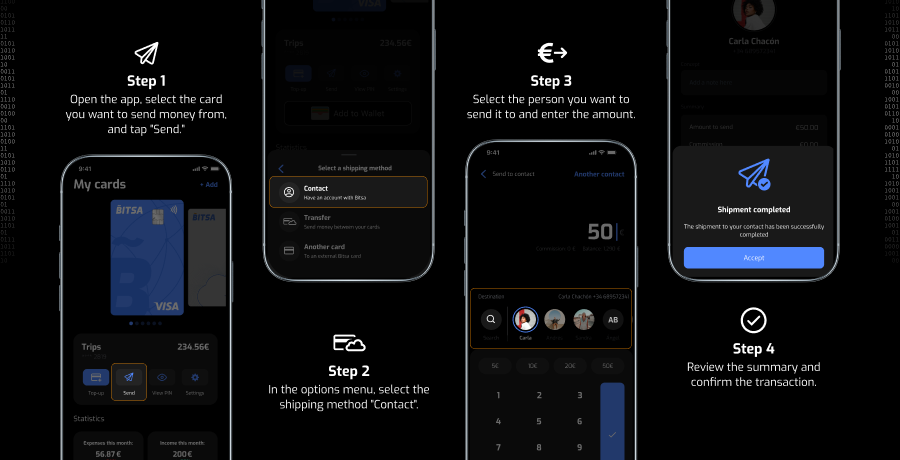
- Select your card and tap “Send.”
- Choose “Contact.”
- Select the person you want to send money to.
- Enter the amount.
- Review the summary and confirm.
For this to work, you’ll need to allow Bitsa access to your contacts in your phone settings. Once that’s done, you can forget about asking for account numbers or “weird codes.”
Send by card ID
If you don’t have their number saved or you prefer sending money to a specific card you can do it by entering the recipient’s card ID. You can find this identifier on the front of the physical Bitsa card, or for virtual cards, in the card details section inside the app.
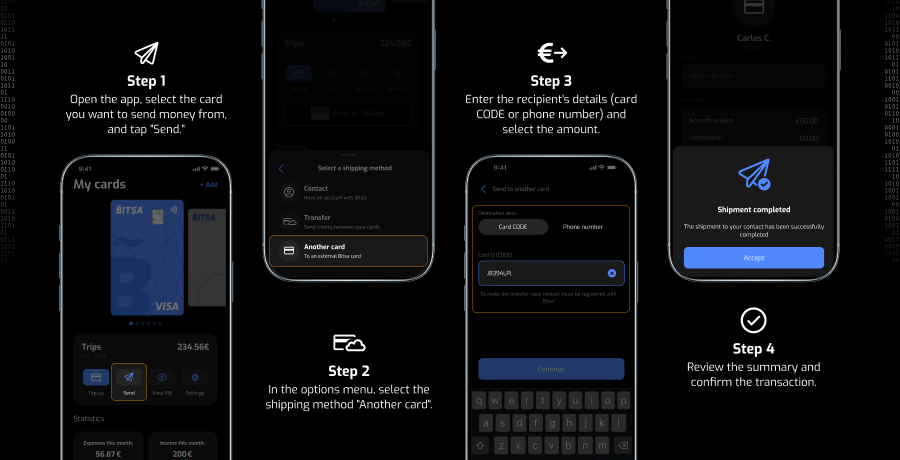
- Select your card and tap “Send.”
- Choose “Other card”
- Add the recipient’s details (either the card code or the phone number).
- Enter the amount you want to send.
- Confirm the transaction. Done.
The transfer is completed instantly, and both you and the recipient will receive a confirmation in the app. It’s a super convenient way to split expenses or pay someone back on the spot, wherever you are.
Quick fixes for common questions
Even though the process is almost automatic, small technical questions can pop up. Here’s how we handle the most common ones:
Can’t see anyone in your contacts list?
It’s almost always a permissions issue. Go to Settings > Bitsa > Contacts on your phone and make sure Bitsa has permission to access your contacts.
The card ID isn’t working
If the app says the ID isn’t valid, the most likely reason is an extra space at the beginning or end when you copied it. It’s the most common mistake. Delete the spaces and the system should recognise it right away.
Can you cancel a transfer?
Short answer: no. In Bitsa, money moves instantly: once you tap confirm, the balance is already on the other card. That’s why we recommend taking one last look at the summary before hitting the final button.
Transferring money between Bitsa cards is one of those things you do once and then never think about again. You keep your balance where you need it, send money to whoever you want, and the only step that matters is confirming. With Bitsa, moving money is part of everyday life, not a chore.