

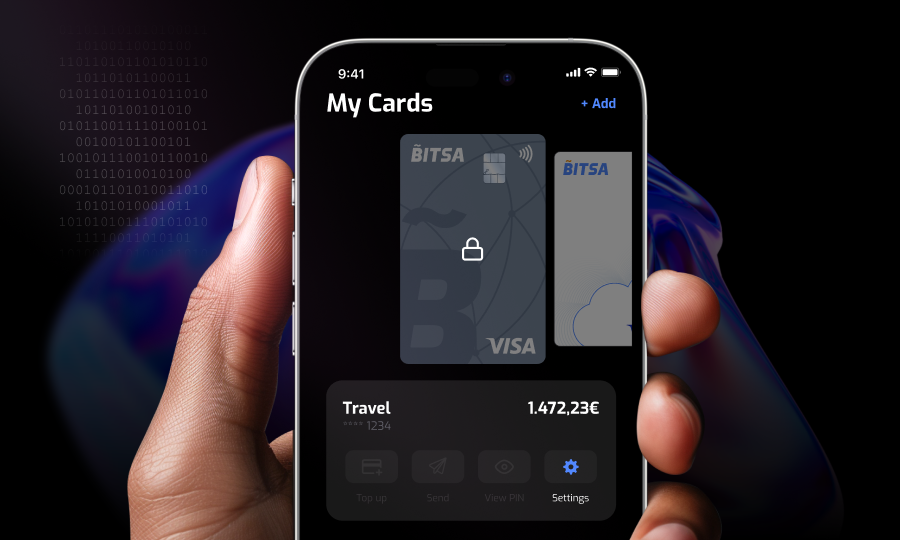
What to do if you lose your Bitsa Card or it gets stolen
There are two moments when you suddenly remember you have a card: when you need it and when you have no idea where it is. If you’re in the second situation (or you’ve just spotted a transaction in your history that you don’t recognise) you don’t need to call anyone or wait on hold. From the app, you can act immediately and stay in full control of what happens to your card.
What you can do depends on the situation. Here are all the options and when to use each one.
The first thing you should do: block your card
If you’ve lost your card, it’s been stolen, or you’ve just seen a charge you don’t recognise, the first step is to block it. Blocking stops any new payments instantly. Your balance stays untouched.
To do it: open the app, select the card and tap the Settings icon. You’ll find the “Block” option there.
The card becomes inactive for as long as it’s blocked. If you find it again or work out what happened, you can unblock it the same way and everything goes back to normal.
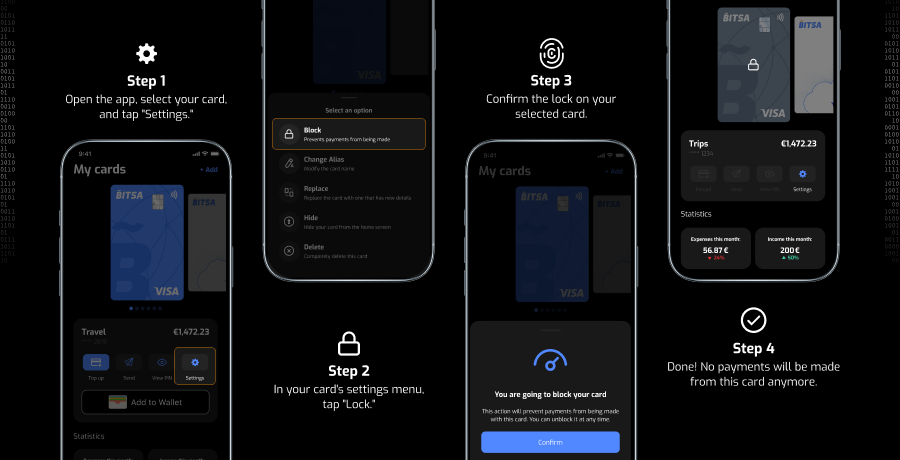
Options available from the app depending on your situation
Once the card is blocked, you need to decide what to do next. Not every situation is the same: losing your physical card is different from spotting a suspicious charge on your virtual card, or having a card that got damaged on a trip.
Each case calls for a different response, and the app has an option for each one. Before you act, it’s worth figuring out which situation you’re actually in.
Replace the card
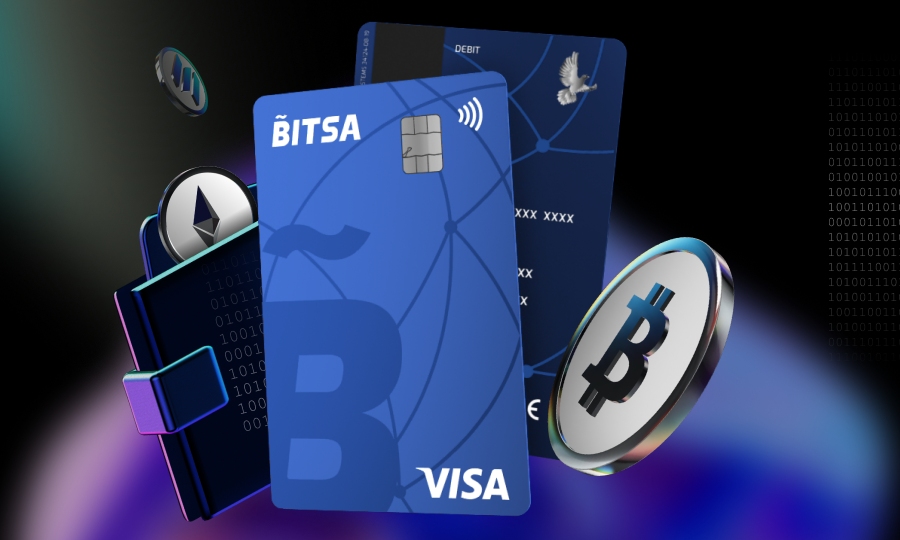
If the card is permanently lost, has been compromised, or has physical damage that makes it unusable, the replace option generates a new card with a different number. The old one is deactivated automatically and you don’t lose any of your funds.
To do it: go into the card, tap Settings and select “Replace”. The process will ask you to get a new card.
Hide the card
If you have a card you use regularly but don’t want its transactions visible at a glance, you can hide it. The card keeps working normally (you can still pay with it) but it won’t appear in the main view and won’t show any income or spending unless you go specifically to the hidden cards section, found in your profile under privacy settings.
To do it: go to “My cards”, tap Settings and select “Hide”. Keep in mind this option is only available if you have more than one active card on your account. If you only have one, hiding it isn’t possible.
Change the alias
When you have more than one card, giving each one a name saves a lot of confusion. You can call it whatever you like and change the name whenever it makes sense — after replacing a card, for example, or when you start using it for something different.
To do it: go to “My cards”, tap Settings and select “Change alias”.
Delete the card
Deleting a card removes it from your account permanently, the card number is cancelled and cannot be recovered. The transaction history linked to that card also disappears for good.
What doesn’t disappear is your money. If the card has a balance at the time of deletion, that amount is automatically transferred to your main card, which always has to remain active on your account.
If you only have one active virtual card, the app won’t let you delete it directly. In that case, you’ll need to use the replace option instead.
To do it: select the card, tap Settings and choose “Delete”.
If you spot a charge you don’t recognise
Not every unfamiliar charge means fraud. A lot of subscriptions and online services show up in your history under the name of the payment processor, not the shop where you actually bought something. Before jumping to conclusions, block the card so nothing else goes through and take a proper look at the history.
If the charge still doesn’t add up after reviewing it, get in touch with Bitsa support at support@bitsacard.com. Because it’s a prepaid card, any fraudulent charge is limited to whatever balance you had at the time — there’s no access to any other funds.
A lost card or an unrecognised charge is a problem you can usually sort out without leaving the app. Block it, figure out what happened, and decide on the next step: replace, hide, change the alias, or delete. If something still isn’t right after all that, the support team can help.